
Effective Expenses
Setup automated import of Apple Wallet transactions
- Open the Shortcuts app on iPhone.
- Go to the Automation tab and tap + to create a new automation.
-
Search for the Wallet trigger and tap on it.
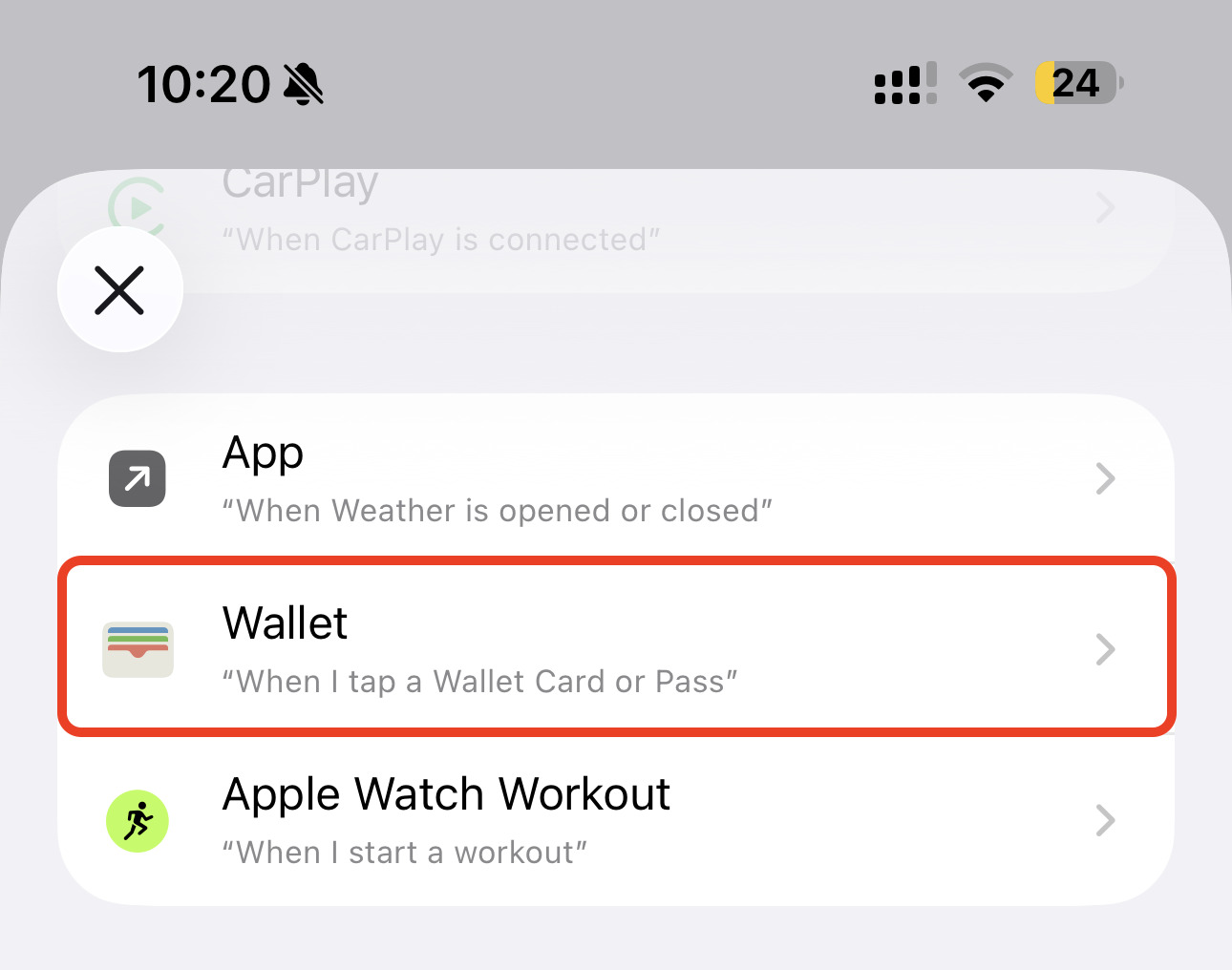
- Choose your preferred transaction filters, then continue to action setup.
-
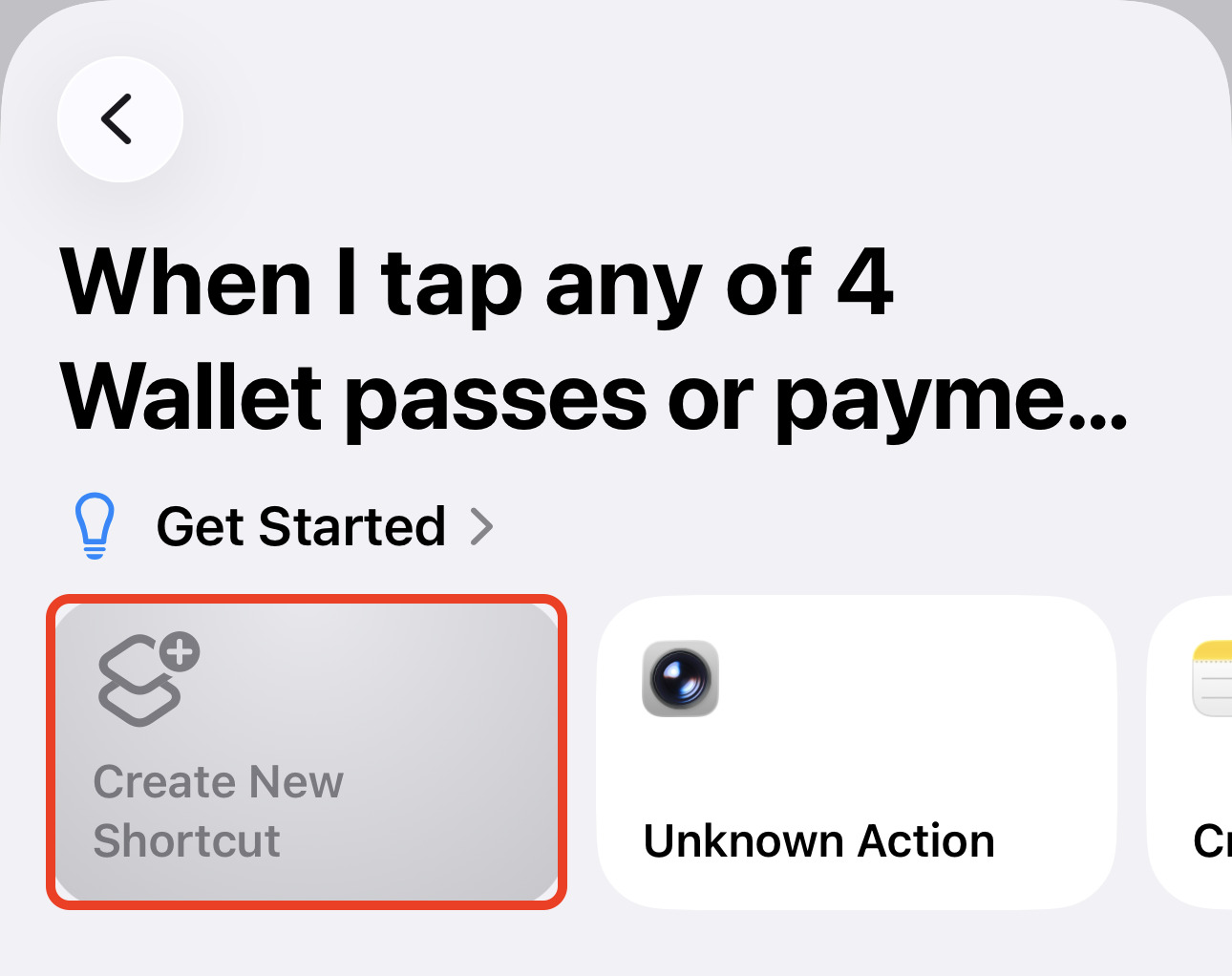
Choose Create New Shortcut.
-
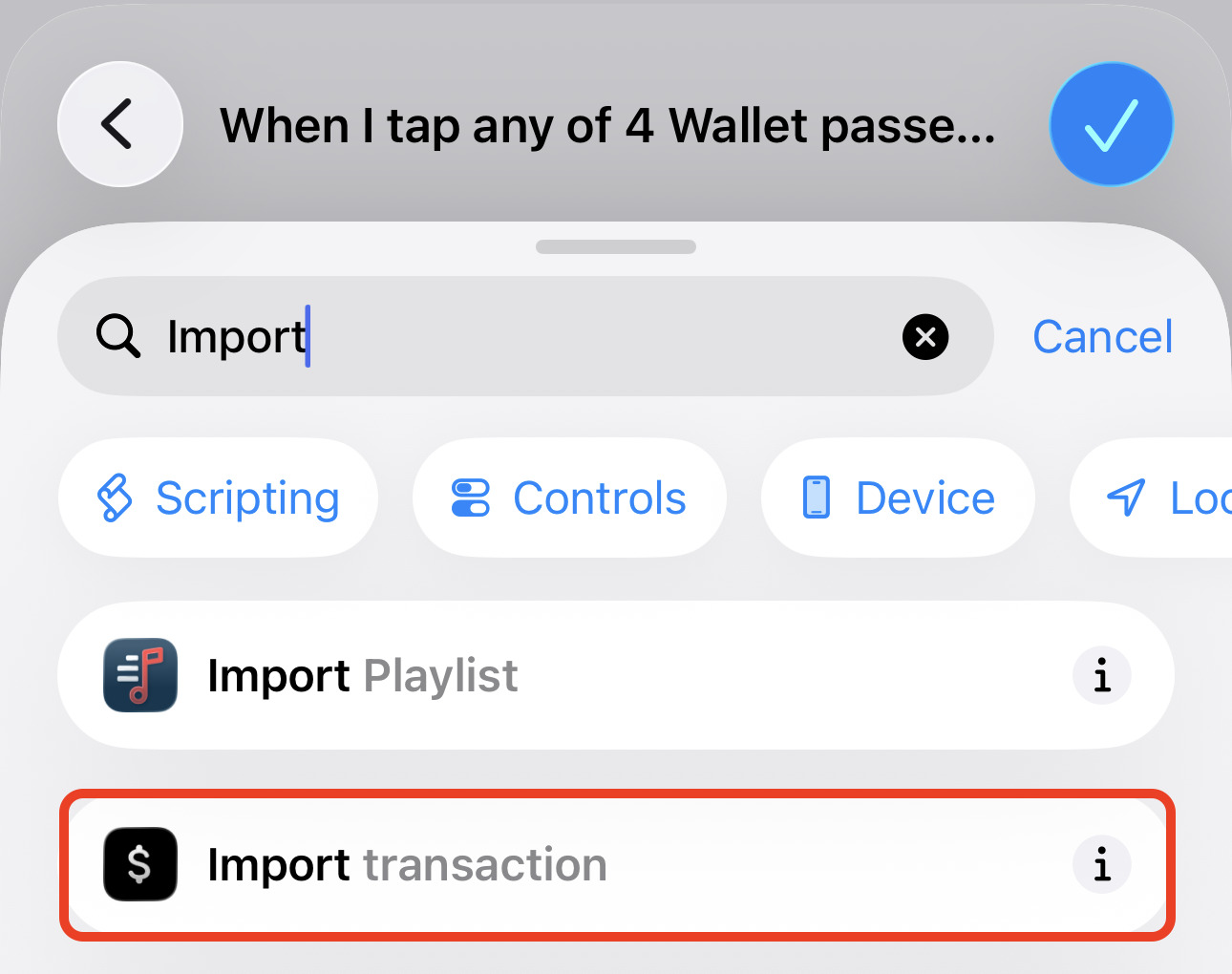
Search for the action Import transaction from Expenses and add it.
-
For the Name parameter:
- Tap on the placeholder on the right.
- Choose Select Variable.
- Tap on Shortcut Input below Receive transaction as input.
- Tap on Shortcut Input again in the Name field.
- Choose Name or Merchant.
-
For the Amount parameter:
- Tap on the placeholder on the right.
- Choose Select Variable.
- Tap on Shortcut Input below Receive transaction as input.
- Tap on Shortcut Input again in the Name field.
- Choose Amount.
-
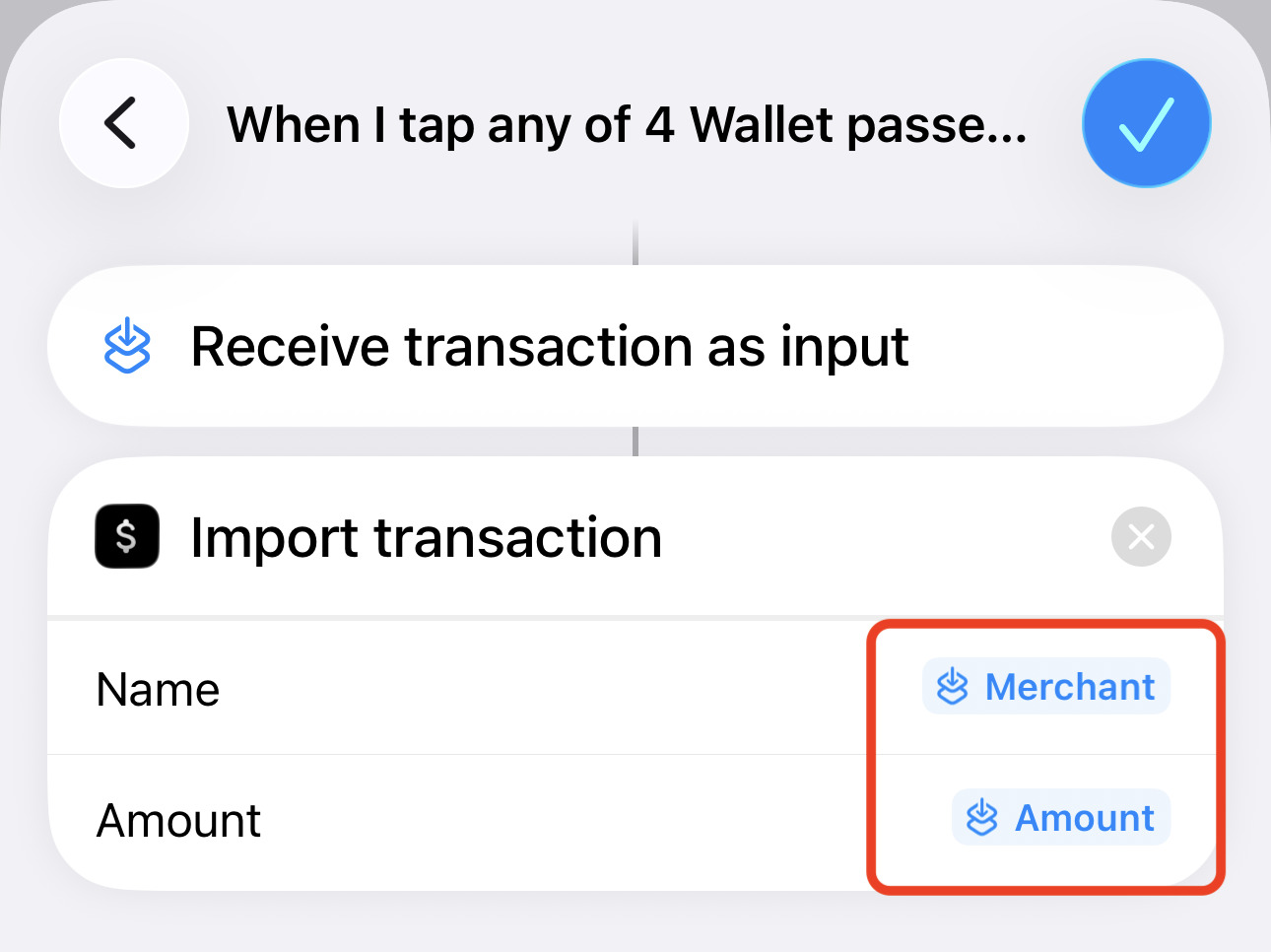
Check that you have entered a value for each parameter and that you
have Amount as value for the
Amount parameter.
-
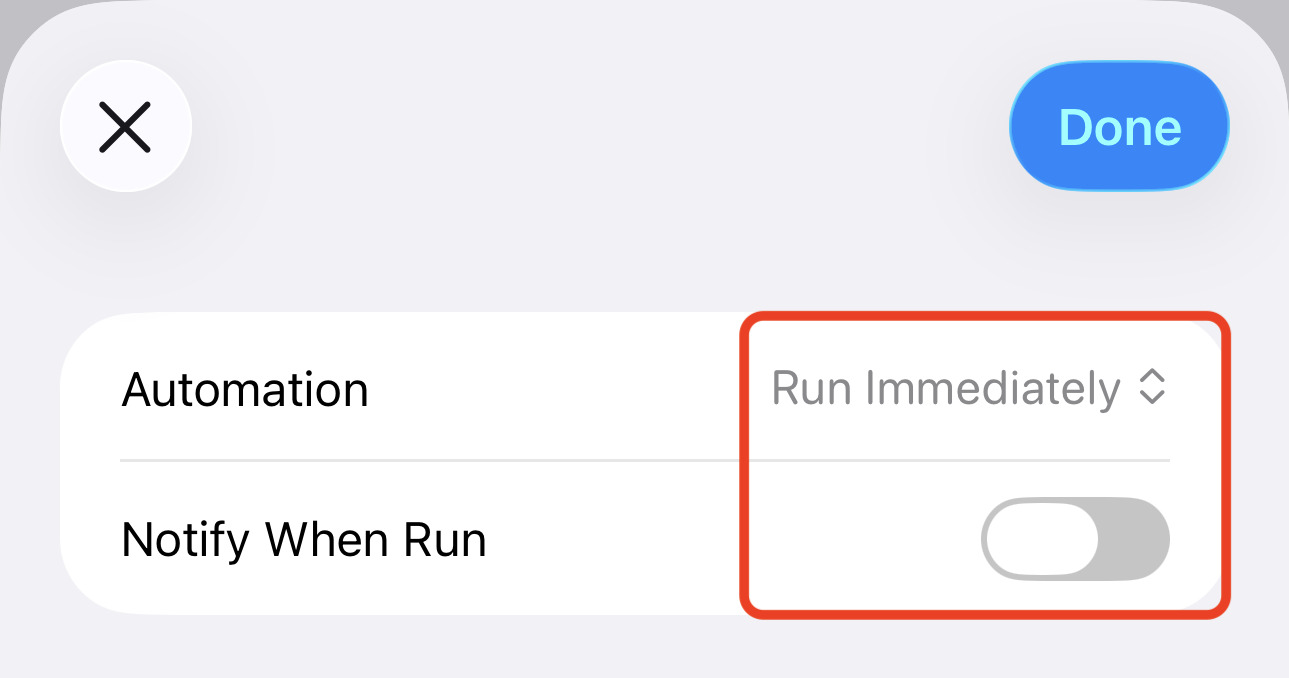
Save the automation and, if available, enable Run Immediately and disable Ask Before Running so it executes every time
a transaction is detected. Otherwise you might have to open the automation
again to enable Run Immediately and disable Ask Before Running.